

Procure 3
For businessProcurement for fit-out and FF&E projects, on an encrypted SQLite database or Microsoft SQL Server.
Procure 3 keeps every project’s budget, suppliers, quotations, purchase orders, deliveries and payments in one place. Keep the data in an encrypted SQLite database file on one PC or a shared folder, or on Microsoft SQL Server Express for a bigger team, and move between the two from inside the program.
Version 3.0 · Pricing depends on the number of users and setup help. No price list: ask and I’ll reply with a quote.
Your choice of database
SQLite or SQL Server: you choose
Each master folder decides for itself. Start with the SQLite file, and move to SQL Server when your team grows, without retyping anything.
Encrypted SQLite database
Ready the moment you install it.
- Nothing extra to install
- A single encrypted file, on one PC or a shared network folder
- Automatic backup every day
- Best for one person or a small team
Microsoft SQL Server Express
For bigger teams and company networks.
- Free edition of SQL Server from Microsoft, or your company’s own SQL Server
- Windows sign-in or a SQL Server login
- Moves every project, supplier, order and payment in one step
- Copy it back to a SQLite file whenever you like
Features
What Procure 3 does
Projects and budgets
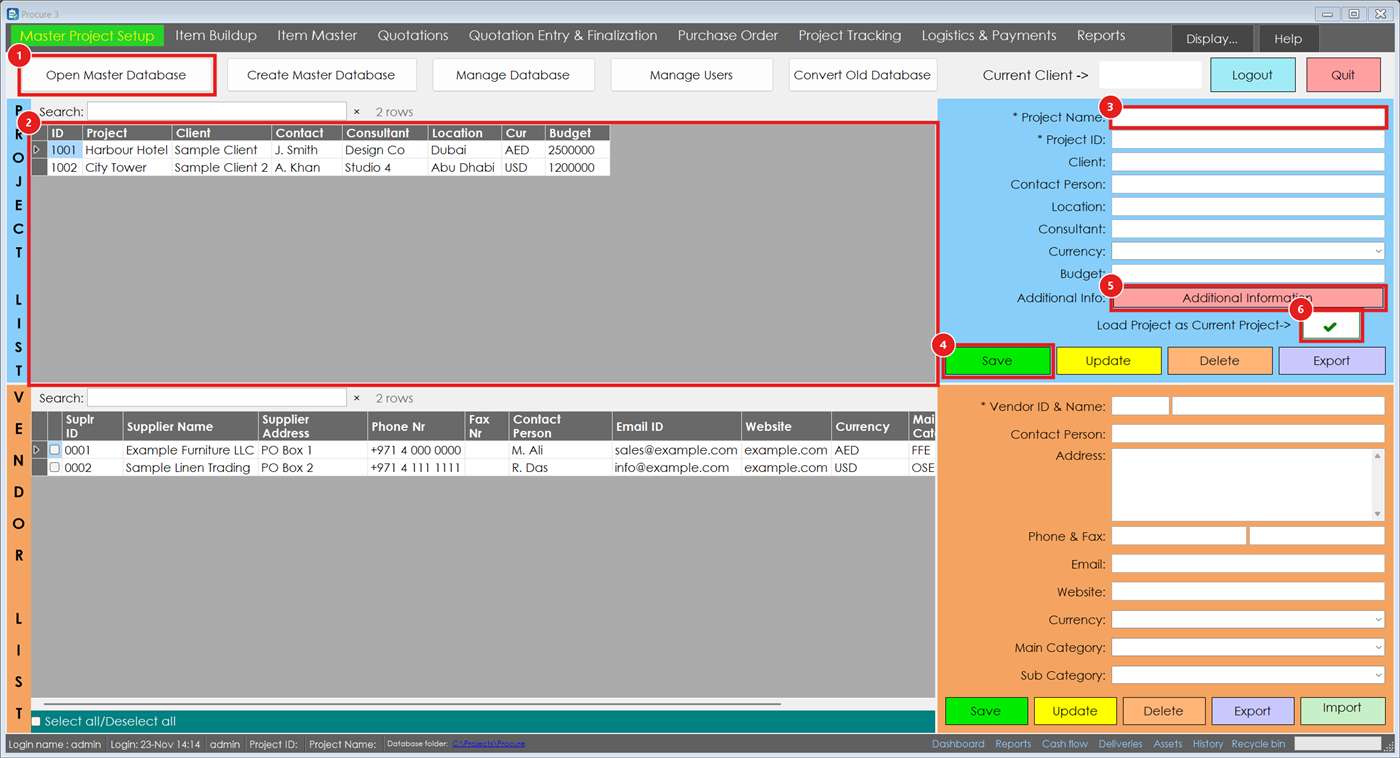
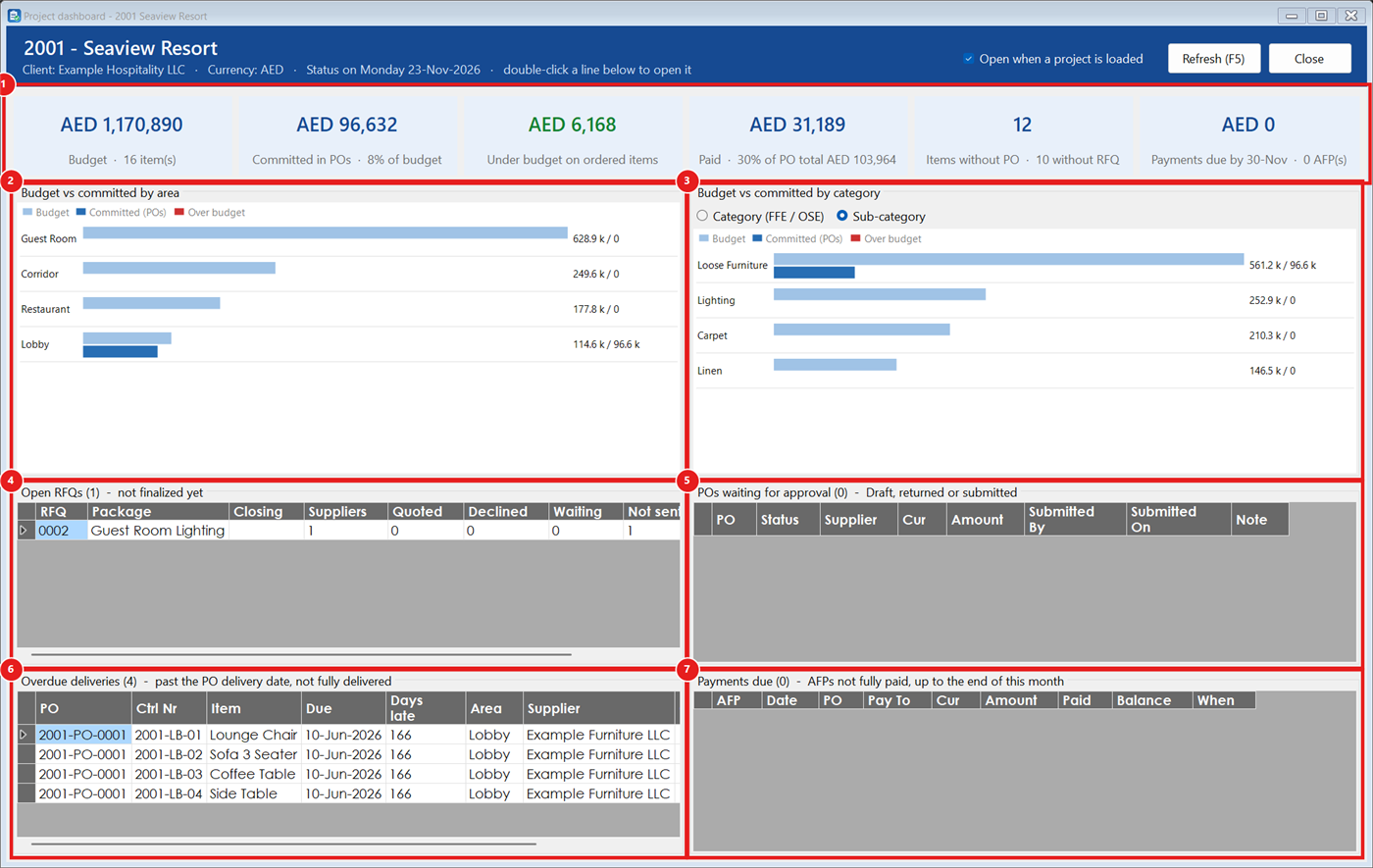
Set up each project with its client, currency and budget, build item lists from a ready-made library of 7,500+ generic items, and see it all on a live dashboard.
Supplier directory
Keep suppliers with contacts, currencies and categories. Import a supplier list straight from Excel.
RFQs by e-mail
Send one RFQ to every supplier in a single step with Outlook, set a closing date, see who has quoted, declined or is still waiting, and send reminders.
Side-by-side comparisons
Print commercial and technical comparison sheets, then finalise the winning supplier for each package.
Purchase orders with approval
POs go from Draft to Submitted, Approved and Issued, with revisions, variation orders and the PO e-mailed as a PDF.
Deliveries and payments
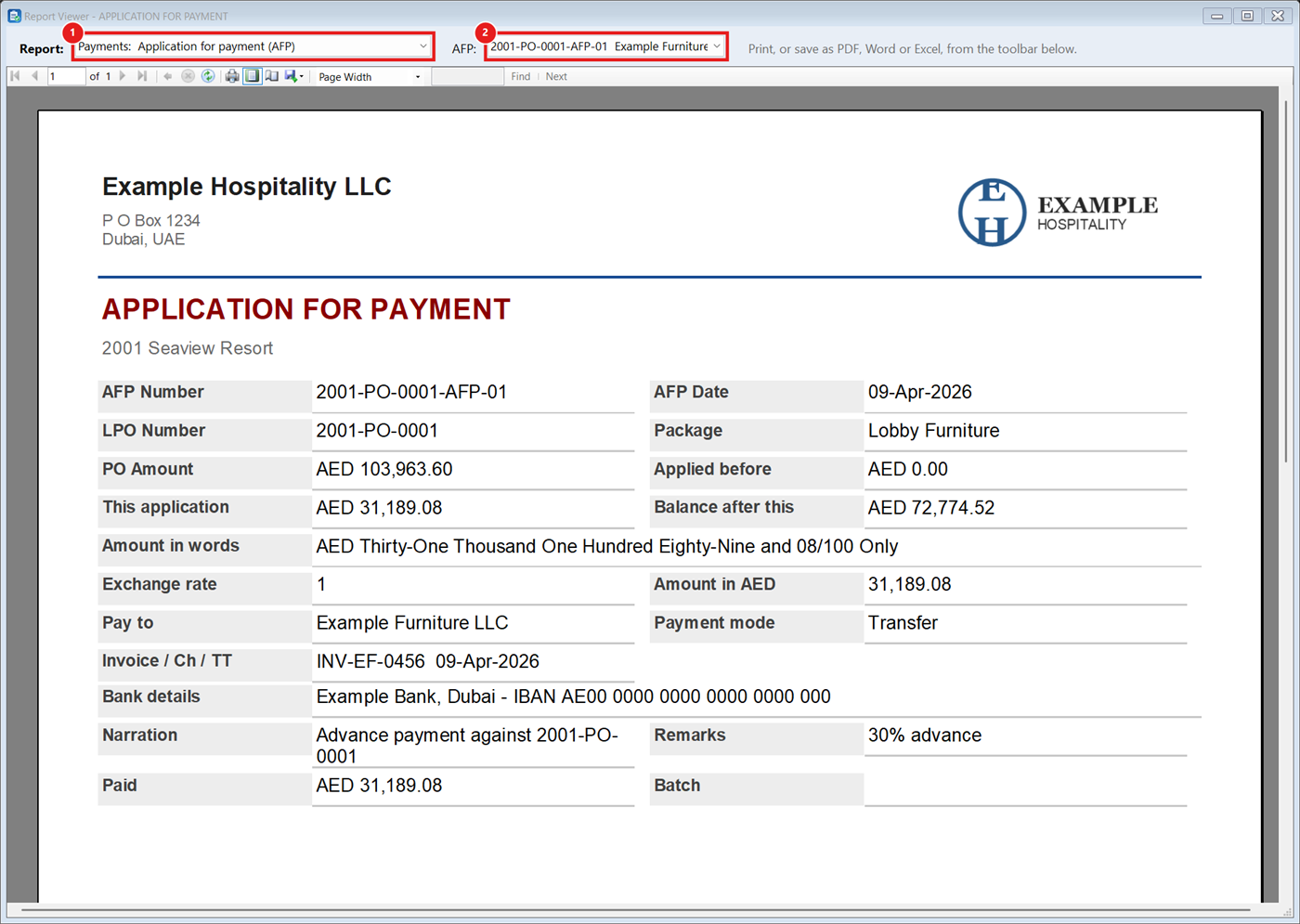
Record delivery notes, follow each order to installation, and handle applications for payment with a cash-flow forecast.
Reports your way
Every report opens on screen to print or save as PDF, Word or Excel, with totals per currency and your client’s name and logo on the forms.
Safe for a team
Logins with per-project rights, a full change history, a recycle bin and “being edited by” notes when two people open the same record.
What’s new
Built for both databases
Encrypted SQLite, ready to go
Out of the box, each master folder keeps its data in one encrypted SQLite file, with an automatic backup every day.
SQL Server Express support
A master folder can keep its data on Microsoft SQL Server (Express or another edition) instead.
Database server window
Manage Database → Database server: enter the server and database, choose Windows sign-in or a SQL login, and test the connection.
Move data both ways
Move a folder’s data from SQLite to the server, use a database already there, or copy it back to a SQLite file.
Same screens, same reports
Every screen, report, export, e-mail and check works the same on SQLite and on SQL Server.
Always know where you are
The status bar shows the database in use, and Manage Database shows a server database by name.
How it works
4 simple steps
Install Procure 3
Unzip or install it on each PC; everything it needs comes with it.
Start on SQLite
Open or create a master folder. Its data is kept in an encrypted SQLite file straight away.
Run your projects
Budgets, RFQs, comparisons, purchase orders, deliveries and payments, all in one place.
Move to SQL Server when you’re ready
In Manage Database, open Database server, enter the server and database name, press Test, then move the data across.
A closer look
Choosing
SQLite or SQL Server?
Every feature works the same on both. The difference is where the data is kept and who looks after it.
| SQLite file | SQL Server | |
|---|---|---|
| What it is | An encrypted SQLite database file, built into Procure 3 | Microsoft SQL Server Express (free) or another SQL Server edition |
| Where it lives | On one PC or a shared network folder | On a server or PC your team’s computers can reach |
| Best for | One person or a small team | Larger teams and company networks |
| Setup | Nothing to install | Install SQL Server Express (I can help), then connect from Manage Database |
| Backups | Automatic backup every day | SQL Server’s own backups |
| Sign-in to the data | Procure 3 logins | Procure 3 logins, plus Windows sign-in or a SQL Server login |
| Moving between them | Move to SQL Server in one step | Copy back to a SQLite file at any time |
What you need
- Windows 10 or Windows 11 (64-bit); everything else Procure itself needs comes with it
- SQLite needs nothing extra: it is built in
- For the server option: Microsoft SQL Server Express (free) or another SQL Server edition that every PC can reach
- Microsoft Excel and Outlook are optional: with them, RFQs and POs fill your own Excel templates and open as ready-to-send e-mails
Questions
How much does Procure 3 cost?
It depends on how many people will use it and how much setup help you need, for example installing SQL Server. Send a quote request and I’ll reply with a price.
Do I need SQL Server?
No. Without it Procure 3 keeps an encrypted SQLite database file, on one PC or a shared network folder. You can move to SQL Server later.
Should I choose SQLite or SQL Server?
SQLite suits one person or a small team sharing a network folder. SQL Server Express suits larger teams on a company network. You can change your mind at any time, in either direction.
Which SQL Server versions work?
Procure 3 connects to Microsoft SQL Server Express, both a full SQL Server Express install on a PC or server and the small LocalDB edition. Other SQL Server editions use the same connection, so ask if you’d like to check yours before you buy.
I already use Procure 2. Can I move?
Yes. Procure 3 opens Procure 2’s master folders and their SQLite databases as they are, and one step in Manage Database moves a folder’s data to SQL Server if you want it there.
It says it can’t find the server. What do I check?
Use the full server name, such as PCNAME\SQLEXPRESS. On the SQL Server PC, make sure the SQL Server Browser service is running, TCP/IP is turned on in SQL Server Configuration Manager, and the firewall lets the other PCs in.
Does it run on a Mac?
Procure 3 is a Windows program. On a Mac it runs inside Windows using a virtual machine such as Parallels Desktop.
Interested in Procure 3?
Send a few details about your company and projects, and I’ll reply with a price and how to get started.